

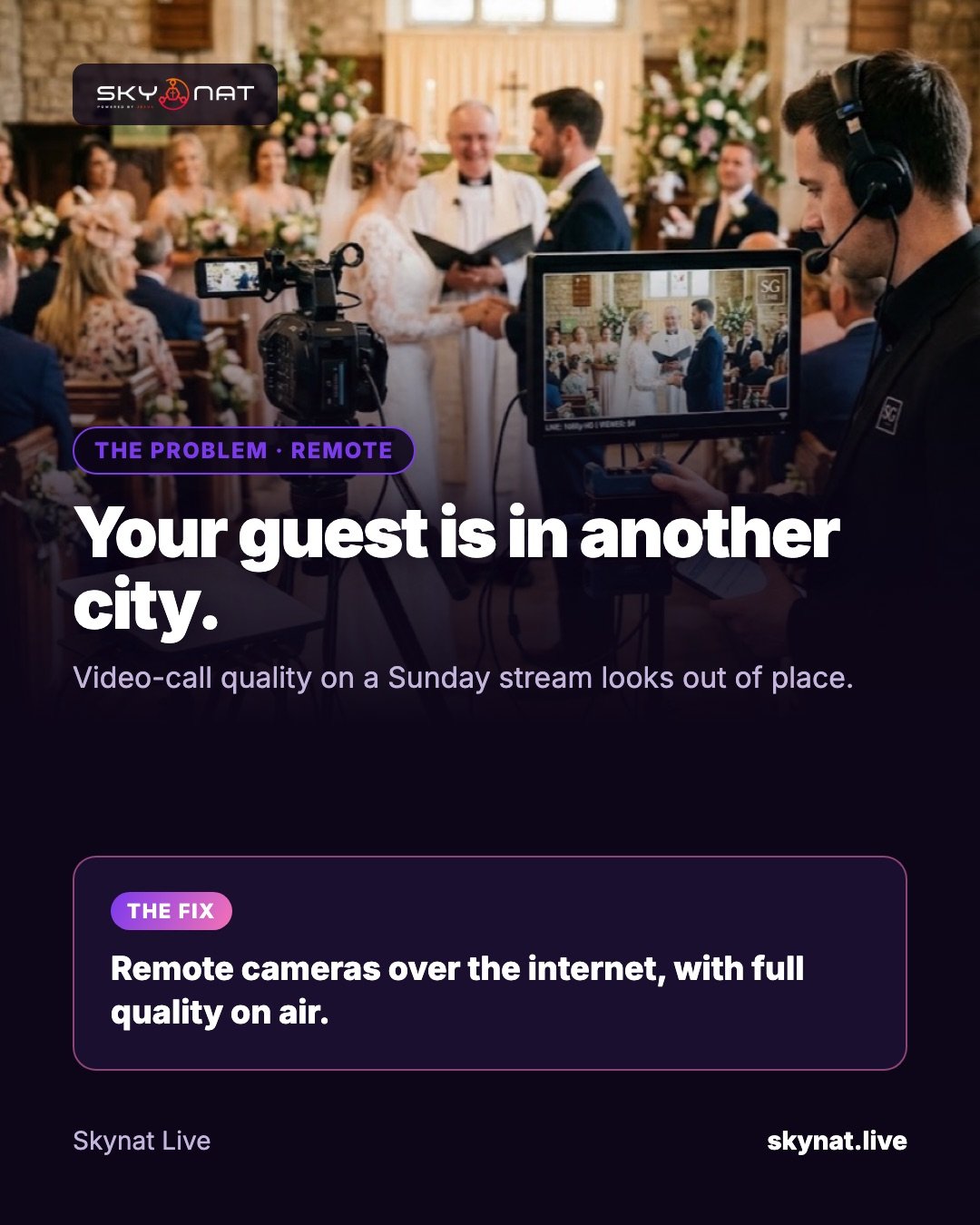
Remote guests are now normal: a speaker who cannot travel, a missionary on another continent, a second campus. The usual approach — a video call captured off the screen — looks and sounds like a video call, and stands out badly next to your cameras.
Options for remote guests
- Capture a video call window: quick, but low quality and awkward audio.
- Ask the guest to stream to you with an app on their phone or computer: better quality, more setup on their side.
- Use streaming software with remote cameras built in: the guest joins with a link or code and appears as a normal source.
What the guest needs
- A stable upload of 3–5 Mbps; a cable or strong Wi-Fi.
- A quiet room, and earphones so your audio does not echo back.
- A light in front of them, not a window behind.
- The camera at eye level.
Bringing them in at full quality
Skynat Live brings remote cameras in over the internet, with full quality when they are on air, and the phone camera app lets a guest join from their own phone. To the operator they are simply another source to cut to.
Related guide: How to use your phone as a live streaming camera
Skynat Live puts all of this in one application for Windows and Mac: $99 a year or $19 a month, everything included, nothing renews on its own. You can download it and try it before a real broadcast at skynat.live.
Questions people ask
How do I bring a guest into my live stream?
Use software with remote guests or remote cameras built in, or have the guest stream to you. Capturing a video call works but looks lower quality.
How do I stop echo with a remote guest?
Have the guest wear earphones, and send them a mix without their own voice (a mix-minus).