

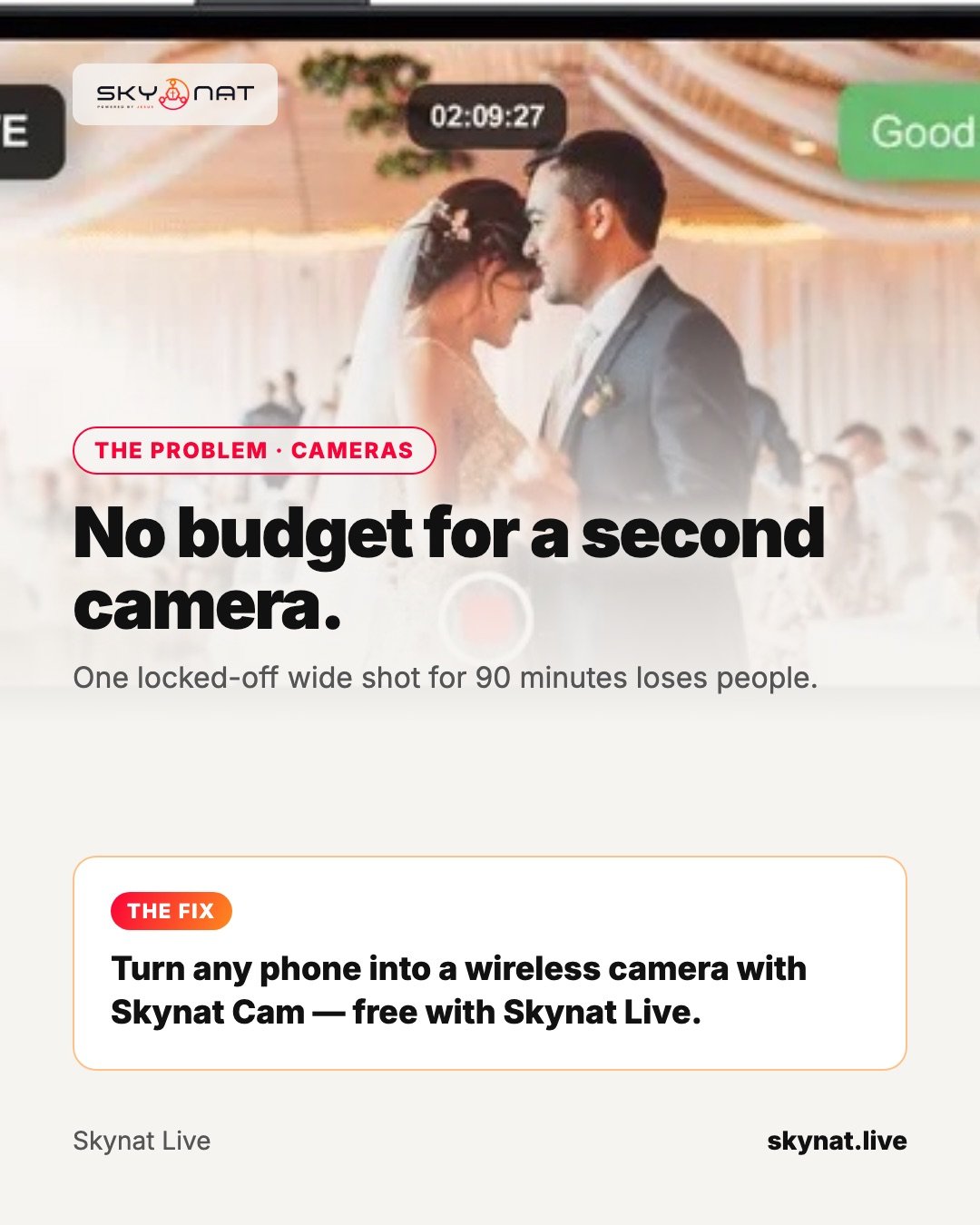
A single wide shot is fine for five minutes. For a ninety-minute service it becomes a still photograph with sound. A second angle — a close-up of the speaker, the band, the congregation — changes how the whole stream feels. And you probably already own the camera.
Is a phone camera good enough?
Modern phones record sharp, well-exposed video, often better than an old camcorder. The weak points are not the sensor: they are mounting, battery, heat and the connection to your streaming computer. Solve those and a phone is a genuinely good live camera.
Set it up properly
- Mount it: a tripod with a phone clamp, never a hand-held phone.
- Power it: plug it in for the whole service — streaming drains a battery fast.
- Connect it on good Wi-Fi, ideally a network used only by your stream gear.
- Lock focus and exposure on the speaker so stage lights do not make it pump.
- Use the rear camera — it is far better than the selfie camera.
- Turn on Do Not Disturb so a phone call does not interrupt the shot.
Frame a shot worth cutting to
Give the phone a different job from your main camera. If the main camera is wide, make the phone a tight shot of the speaker — eyes about a third from the top of the frame. If the main camera is on the pulpit, put the phone on the band or the congregation.
The best app to connect a phone camera
You need an app that sends the phone's picture into your streaming software with low delay. Skynat Cam does that for Skynat Live and it is free: any phone becomes a wireless camera in the room over Wi-Fi, or from another city over the internet. It appears as a normal source you can cut to.
Related guide: How to use your phone as a live streaming camera
Skynat Live puts all of this in one application for Windows and Mac: $99 a year or $19 a month, everything included, nothing renews on its own. You can download it and try it before a real broadcast at skynat.live.
Questions people ask
Can I use my iPhone as a camera for live streaming?
Yes. With a camera app that connects to your streaming software, an iPhone or Android phone works as a wireless camera. Mount it, keep it plugged in and use good Wi-Fi.
How many phones can I use as cameras?
Several. Skynat Live can take multiple phone cameras; the practical limit is usually your Wi-Fi and how many angles your operator can manage.