

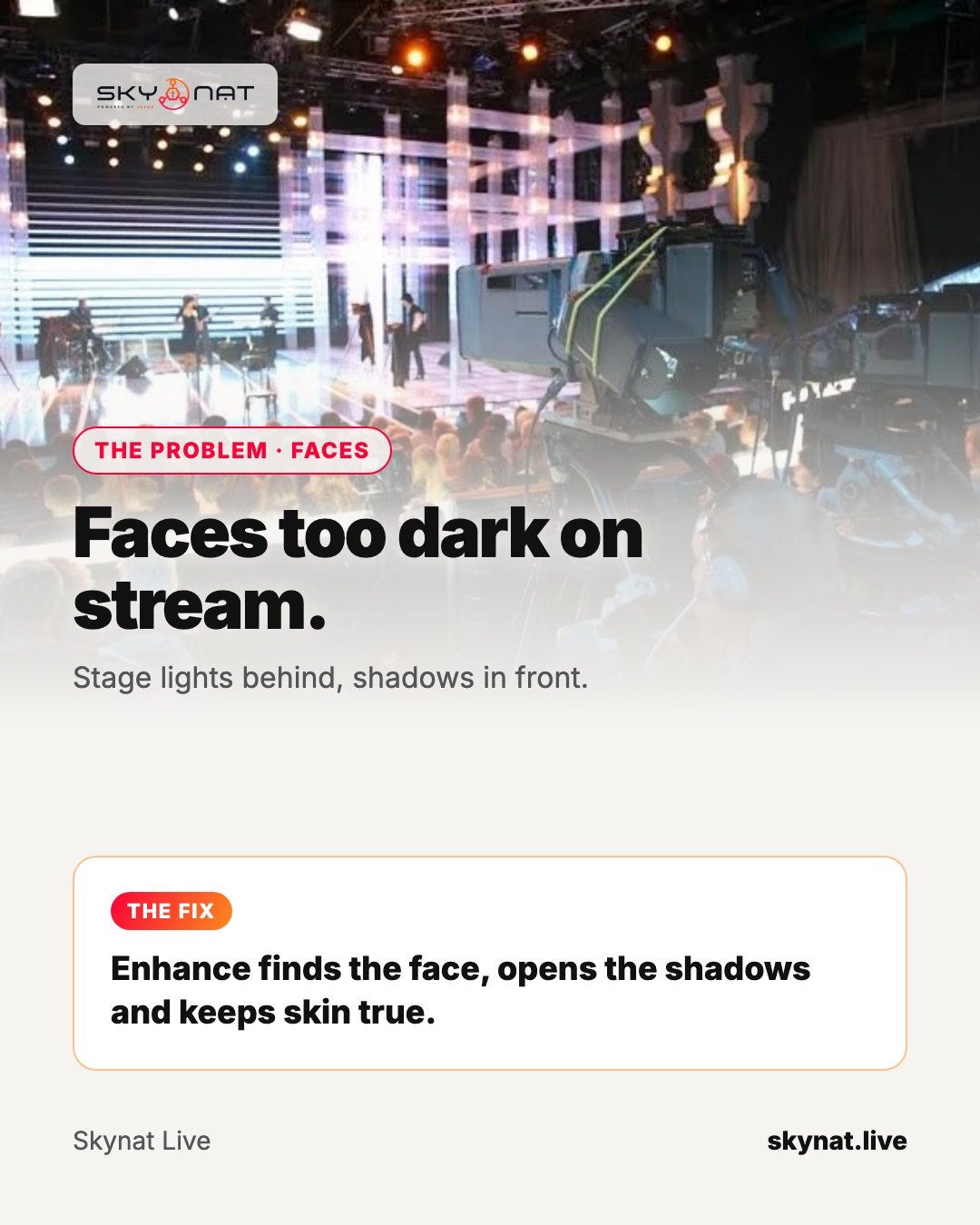
The stage looks beautiful in the room — bright screens and lights behind the speaker. On the stream, the camera exposes for all that brightness and the speaker's face sinks into shadow.
Why faces go dark
Cameras expose for the whole picture. Bright LED walls, projector screens and backlights pull the exposure down, and faces lit only from above end up with dark eye sockets and a muddy complexion.
Fix it with light first
- Add front light on the speaker from about 30–45° above eye level.
- Use soft light (diffused panels) so it does not glare.
- Turn down the brightest screens behind the speaker if you can.
Then with the camera
- Expose manually for the face, not the whole frame.
- Use a tighter shot so the background takes less of the picture.
- Keep white balance matched to your front lights.
Software that helps
Skynat Live's Enhance finds the face, opens the shadows, calms noise and keeps skin true — useful when you cannot change the lighting before the service.
Related guide: How to match camera colours in a live stream (so your angles look like one show)
Skynat Live puts all of this in one application for Windows and Mac: $99 a year or $19 a month, everything included, nothing renews on its own. You can download it and try it before a real broadcast at skynat.live.
Questions people ask
How do I make my face brighter on a live stream?
Add soft front light, expose the camera for the face, and use a tighter shot. Software enhancement can lift shadows when lighting cannot change.
Why does my camera make the speaker dark?
Bright backgrounds pull the automatic exposure down. Switch to manual exposure set for the face.